
Trade Import
This trade import setup guide shows how to bring broker exports, spreadsheets, supported HTML statements, and older trade journals into Journalit without rebuilding everything by hand.
Want a shorter overview page? See trade import for your Obsidian trading journal.
What Trade Import is really for
The goal is not just to ingest files. The goal is to convert messy trade exports into clean, structured Journalit records that work with Trade Log, reviews, accounts, and dashboards.
Trade Import Overview
Access Trade Import from the Home View quick links, or open the command palette with Ctrl+P and search for the trade import command.
Built-in adapters
Use broker-specific import logic when Journalit already knows the export format.
Manual mapping
Map custom CSV or Excel columns yourself when the broker is not built in.
AI-assisted mapping
Get a suggested mapping when the file structure is unfamiliar or inconsistent.
Template reuse
Save working mappings so you do not have to solve the same import problem twice.
Built-In Broker Adapters
If your broker or platform is already supported, use the adapter first. That is usually the fastest and safest path.
Tradovate
Futures imports with adapter logic tailored to Tradovate export structure.
TopstepX
Futures trade-history imports from the TopstepX Trades module.
Sierra Chart
Trade activity exports mapped for Sierra Chart workflows.
MotiveWave
Standard MotiveWave trade exports with entry, exit, and fee handling.
ATAS
XLSX journal exports from ATAS Statistics, including the Journal sheet workflow.
Trading Technologies
Execution-level pairing with support for scale-in and scale-out flows.
Rithmic
Completed-order exports with pairing logic for sectioned execution data.
DeepCharts
Strategy Report Trade List CSV imports with signed quantity, closed-trade timing, and broker-reported P&L.
MetaTrader reports must be in English
MetaTrader 4 / 5 Statement import currently does not support reports in other languages. Set MetaTrader to English, restart if prompted, and upload a fresh original HTML or HTM export using the dedicated adapter. Do not use Manual Mapping for a translated MetaTrader report.
Best practice
If a built-in adapter exists for your platform, use that before reaching for manual mapping. The adapter usually handles broker-specific quirks you would otherwise need to rediscover yourself.
Three-Step Import Flow
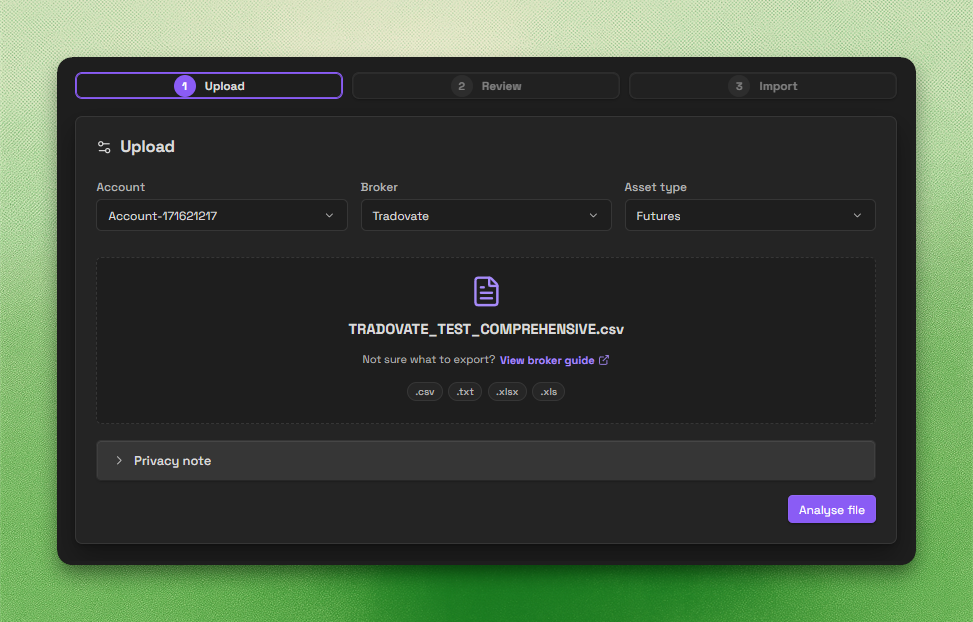
Trade Import uses a three-step flow: upload the file, review the parsed data, then confirm the import. The flow is intentionally staged so you can catch file, mapping, and duplicate issues before anything is written to your vault.
Preview before upgrading
Sign in with a free Journalit account to analyse and preview a supported import file. Pro is required only when you confirm the import and write the prepared trades to your vault.
Free accounts can run up to 12 analyses and 12 previews per hour, with up to 10,000 trades retained in stored previews. If a limit is reached, Trade Import shows the relevant limit instead of presenting it as a mapping failure.
Upload
Create the CSV, XLSX, XLS, or supported HTML export from the source platform. If you are unsure where to find the correct export, check the Broker Export Guides.
The upload step opens on a grid titled Where are these trades from?.
Search by name, or pick a tile. Once a source is chosen, the account, asset
type, and upload controls appear beneath a summary bar with the source logo, a
How to export link, a star to make it your default, and a
Change button. Upload the original export file. Use the export link
when you need the exact settings for a supported platform.
If your file is not from a listed source, choose the Own spreadsheet or
other file tile for manual or AI mapping. When the analysis recognises that a
file belongs to a different supported source, Journalit offers a
Continue with action for the recommended source.
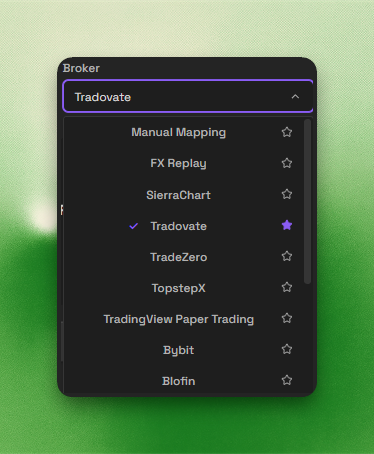
Choose the matching export source, manual mapping, or AI mapping path. The
selector is labelled Export source / platform because it describes
where the file was exported, rather than the broker used for execution.
Review
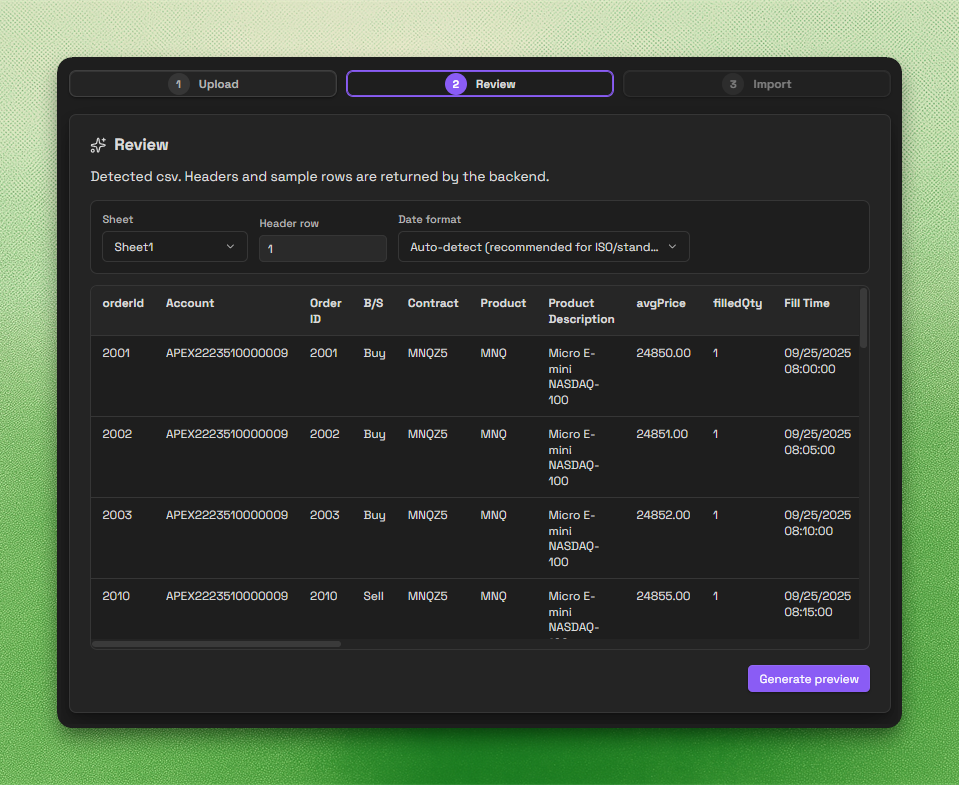
Before confirming the import, verify trade count, dates, prices, P&L, validation warnings, and any broker-specific edge cases.
The review summary also shows the history range, symbols, recovered trade count, duplicates, and rows that need attention. Use those totals to confirm that the export covers the period you intended to bring across.
The preview reports one of three outcomes:
- Completed: parsing finished and the preview shows the available import actions.
- Partially completed: valid trades are available, while diagnostics identify failed or incomplete source rows. You can import the eligible trades or correct the source first.
- Failed: the file could not produce writable trades. Confirmation stays disabled while the preview explains what to check.
A completed preview can still contain only duplicates or blocked items. That is a matching result rather than a parsing failure.
Wrong export recovery keeps the uploaded file and offers a one click source switch for recognised DeepCharts Trade List and MotiveWave execution exports, alongside the existing MetaTrader, Tradovate, and TradingView guidance. The switch clears incompatible manual mapping state and reruns analysis automatically.
Import
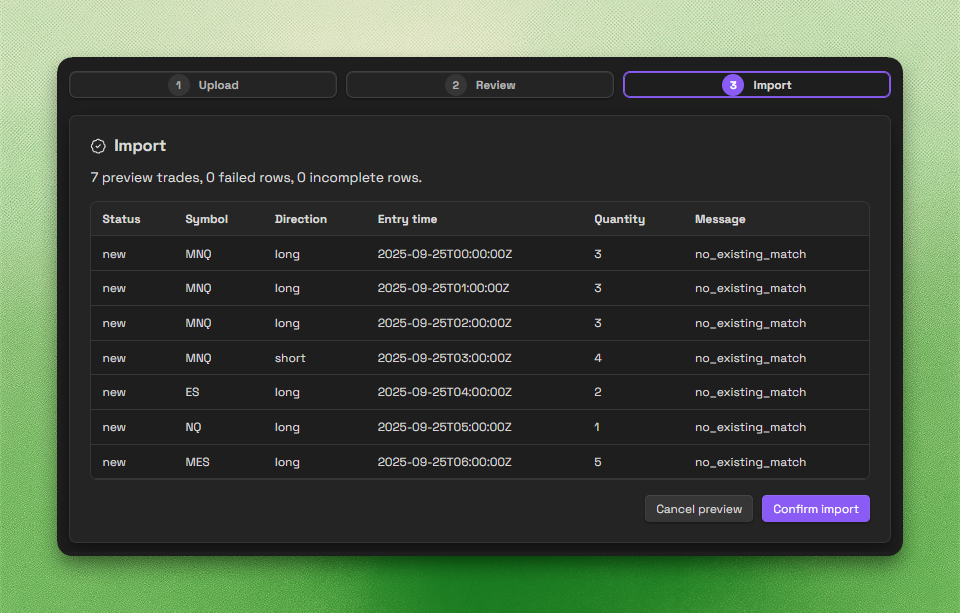
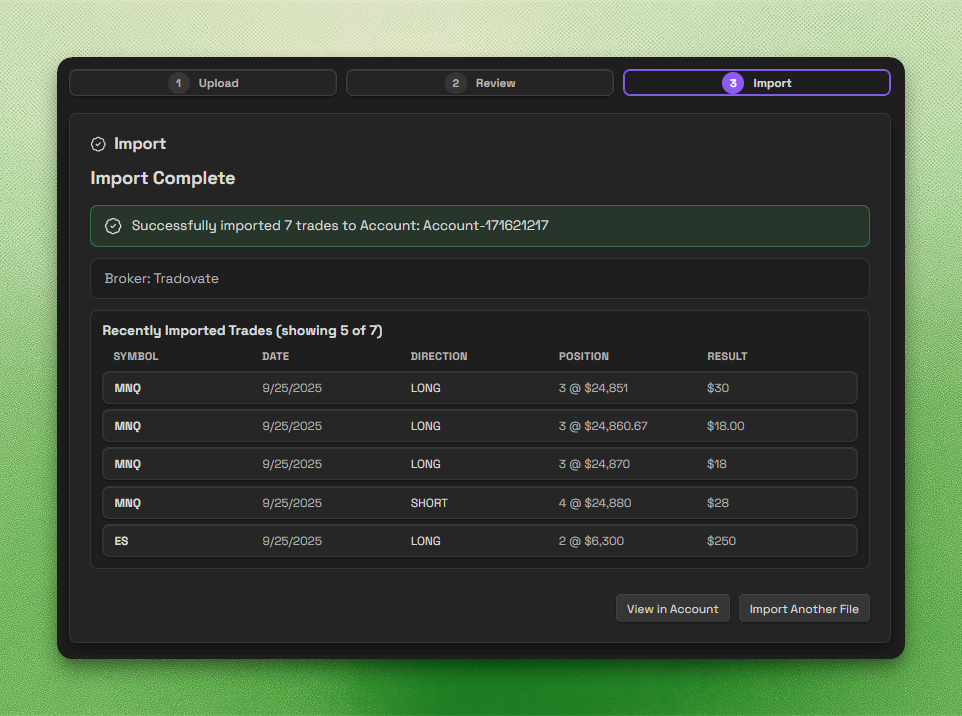
The import step shows the trades that are ready to write, their status, and any message from matching or duplicate detection. Confirm the import only after the preview set matches what you expect.
After completion, Journalit shows the account, broker, and recently imported
trades. View N trades opens the Trade Log scoped to the notes
written by that import, while Review now opens the recommended
review period. You can also open the account view or start another import from
the same screen.
Quick Import
Quick Import is for traders who use the same account, broker adapter, and asset type repeatedly. Instead of walking through the full three-step flow every time, save a favourite Trade Import setup and drop the next broker export straight into the modal.
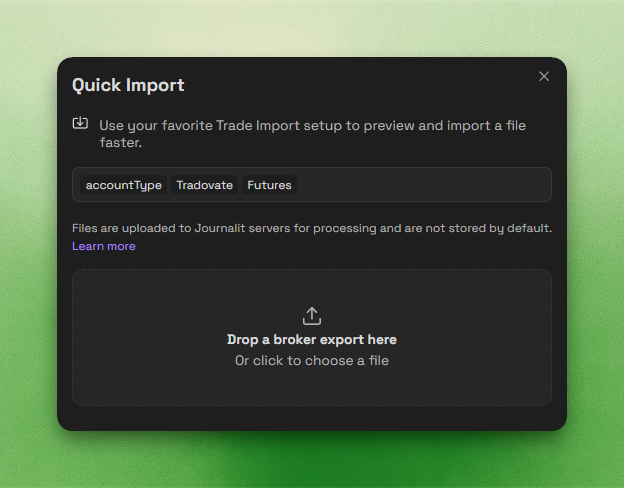
Favourite setup
Quick Import reuses your chosen account, broker adapter, and asset type so routine imports start from the right configuration.
Sidebar access
Open it from the Quick Import button in the Tools section of the Journalit sidebar.
Command palette
Open it from Obsidian's command palette when you prefer keyboard-driven workflows.
Hotkey-ready
Assign an Obsidian hotkey to the Quick Import command when importing is part of your daily routine.
Import Your Own Spreadsheet
Keep a home-made trading journal in Excel or Google Sheets? Trade Import reads it as it is. You do not need to reformat the sheet or start a new journal.
Preview free, import with Pro
With a free account you can upload your own sheet and preview every trade it will create. Pro is needed only when you import the trades.
What Your Sheet Needs
Your sheet needs one of these combinations of columns:
You track P/L
Date, Symbol (Pair or Ticker), Direction (Buy/Sell or Long/Short) and a P/L column.
You track prices
Date, Symbol, Direction, Entry price, Exit price and Size (Lots or Qty). Journalit works out the P/L.
Forex and futures without a P/L column
To calculate P/L from prices, forex and futures sheets also need a Contract size column. Without one, map your P/L column instead.
Nice to have
Exit date or time, commission, fees or swap, notes, tags, setup, mistakes and screenshots.
No need to clean up
Title rows above the headers, blank rows, a Totals row at the bottom and several tabs are fine. You pick the sheet.
Formulas
Cells with formulas are read using their last calculated values.
No Result column needed
You do not need a Win/Loss column. Journalit works out the result from P/L.
- File types:
.xlsx,.xlsand.csv. In Google Sheets, chooseFile → Downloadand pick.xlsxor.csv. - Extra columns: anything without a Journalit field, such as R:R, Emotions or Session, can be kept as a custom field.
- Stop loss and take profit: these cannot be imported as built-in fields yet. Keep them as custom fields.
Import Steps
Upload and check the column matches
In Trade Import, pick Own spreadsheet / other file and upload your
.xlsx, .xls or .csv file.
Pick the sheet and the header row if needed. Row numbers match the ones you see
in Excel.


Your columns are matched to Journalit fields automatically, for example
Date to Entry time, Pair to Symbol,
Buy/Sell to Direction and P/L to Profit/Loss. You can
change any of them.

Answer "What is each row?"
Choose One trade per row for most home-made journals, or
Orders or fills for broker exports that list each buy and sell as
its own row.

Confirm your date order if asked
If your dates could be read two ways, Journalit asks which one you mean. For
example, is 02/03/2026 2 March or 3 February? Dotted formats such
as 25.12.2024 and 2024.12.25 are supported too.

Preview, then import
The preview shows every trade with its date, open or closed status, P&L and
screenshots. Columns you did not map are listed under Not imported.
Use Keep as custom field to bring any of them across, then import.


Importing again later
When your sheet grows, upload it again. Trades you already imported are
recognised and skipped. Anything that only looks like a duplicate is shown
so you can choose Import anyway. To undo an import, open
Manage past imports, which deletes that import's trades.
Excel And XLSX Workflows
Journalit supports direct Excel imports and selected HTML statement workflows because many brokers and tools do not produce a clean CSV.
XLSX and XLS support
Useful when the source exporter is Excel-native or when the CSV output is unreliable.
Custom-field mapping
Map source columns directly into your own custom trade fields during import.
Embedded image extraction
Extract images from supported workbooks and review them before confirming the import.
Direct P&L and extra fees
Import final realised P&L and additional fee columns when price reconstruction is incomplete or unnecessary.
Direct P&L note
Manual direct P&L imports work without a quantity mapping. If your file has trustworthy final P&L but no quantity column, you can still import it.
Embedded Images From Excel

Screenshots in your spreadsheet come across with your trades. Pictures pasted over a trade's row, or placed in a cell, in Excel or Google Sheets, are matched to that row's trade. They appear with the trade in the preview, and you can leave any of them out before importing.

Other Fees And Direct P&L
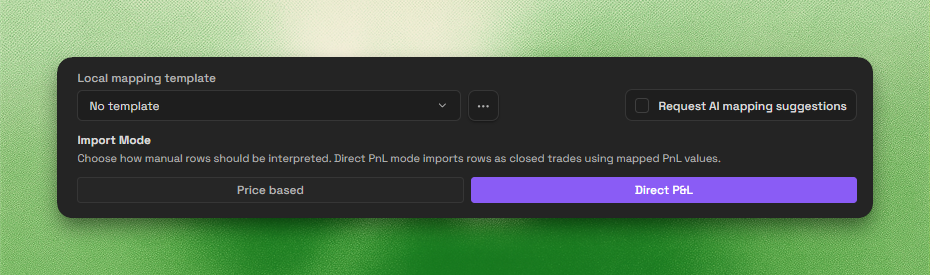
The mapping options sit together in the manual import flow. Use Direct P&L mode when your export already contains authoritative final P&L or when broker fee breakdowns matter more than reconstructing every fill manually. From the same area, you can load a local mapping template or request AI mapping suggestions.
Manual Mapping
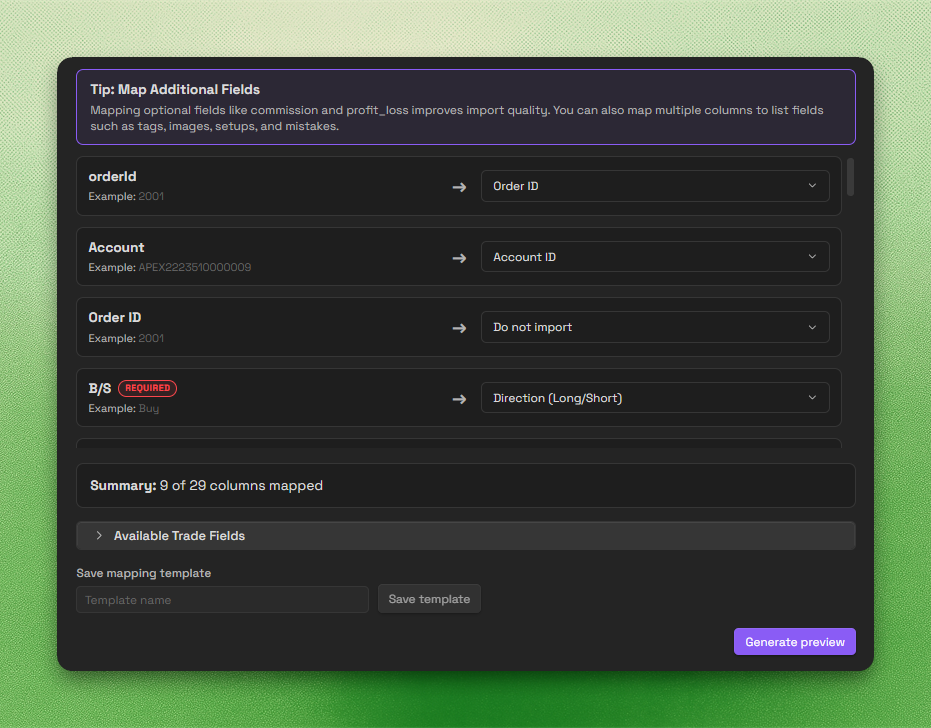
Manual mapping is the fallback when a built-in adapter does not exist or the file format has drifted too far from the expected broker export.
Upload the file
Start with the CSV, XLSX, or XLS file you want to import.
Choose Own Spreadsheet Or Other File
Pick Own spreadsheet / other file instead of a broker adapter.
Map the source columns
Connect each source column to the corresponding Journalit field, including any custom trade fields or additional fee columns you want to preserve.
Handle format details
Adjust date, time, and number-format assumptions if the export uses something non-standard.
Preview and save the template
Review the parsed trades, then save the mapping if you expect to reuse the same format later.
Minimum data needed
Manual mapping needs enough information to build a valid trade. At minimum, you need symbol, entry timing, direction, and either full price/size data or a trustworthy direct P&L field.
Required trade identity
Symbol or ticker, entry date and time, and direction.
Calculation path
Either entry price + exit price + quantity, or a direct P&L field that you trust.
Convenience memory
Journalit remembers your recent broker and account selections to reduce repetitive setup.
Required mappings are validated before preview. Price based and direct PnL
imports each list their missing required fields beside the preview action, and
Generate preview stays disabled until every required mapping for
the selected mode is complete. Mapping validation is header aware, so empty or
stale template mappings do not count as valid.
AI-Powered Mapping
AI mapping exists to reduce the pain of unfamiliar exports, not to replace your review judgement. It is available from the same mapping options area as local templates and Direct P&L mode, so you can combine saved mappings, AI suggestions, and the right calculation mode for the file in front of you.
Upload the file and choose AI Mapping
Start the import and select AI Mapping.
Let the model suggest the mapping
Journalit analyses the column names and sample rows to infer likely field assignments.
Review the suggestion
Confirm that dates, prices, quantities, direction, fees, and P&L are mapped correctly before importing.
Save the working configuration
If the mapping is correct, save it as a reusable template for later imports.
Privacy note
AI mapping sends column headers and small samples for mapping help, not your full trade history. You should still review the result like any other import.
Template Sharing
Journalit Trade Templates let you reuse and share import configurations.
Save working mappings
Turn a successful manual or AI mapping into a reusable import template.
Export template codes
Generate a shareable template code after the mapping is working correctly.
Import someone else's template
Paste a shared template code and use it like another adapter in your list.
Import Matching And Duplicates
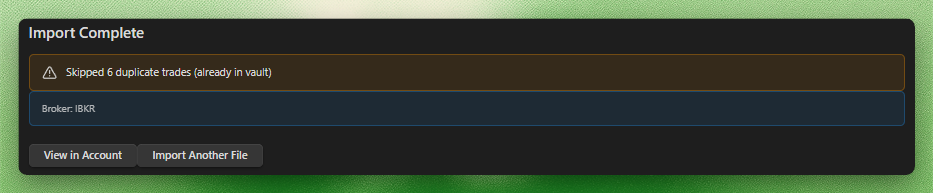
Journalit previews imports through the Journalit backend before writing local markdown notes. The preview classifies each row or trade group, identifies matches where possible, and shows which items can be imported, skipped, updated, or require manual review.
Backend preview
The preview uses canonical import IDs and classifications before anything is written to your vault.
Commit then project
Selected items are committed through the backend, then Journalit projects the committed trades into local markdown notes.
Duplicate protection
Duplicate or blocked items are not offered as normal writes, which keeps repeated imports from creating extra notes.
Import summary
The result shows what was created, updated, skipped, or blocked for review.
Instrument cost rules configured in Settings apply during preview and when eligible imported trades are written. A broker-provided non-zero commission takes precedence. When the export has no commission, or reports zero, the local per-side or round-trip rule can supply the cost and reduce the displayed net P&L.
Restoring Imported Trade Notes
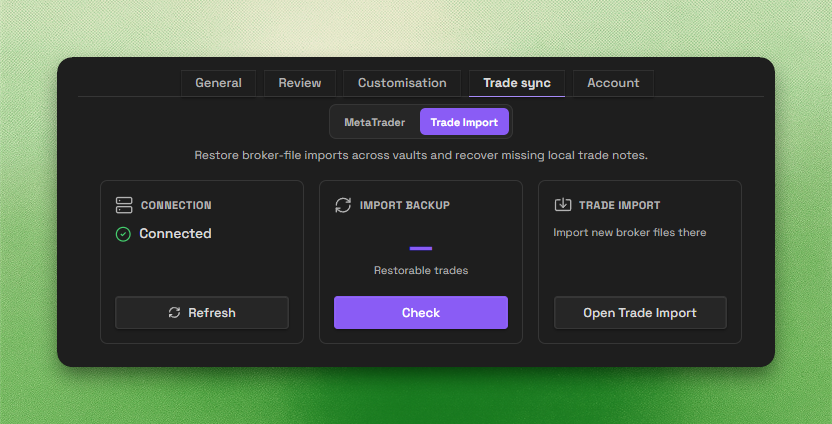
Imported trades are treated as backend records with local Obsidian notes as the vault projection. That lets Journalit restore missing local notes without re-importing the source file or creating duplicate backend trades.
Use the restore panel in Trade Import settings when imported trade notes are missing from the current vault, were deleted locally, or need to be projected into another vault that uses the same Journalit account.
Vault-aware restore
The panel shows the active vault identity and the imported trades that can be projected into that vault.
Local note recovery
Selected trades are written back as local markdown notes while the backend trade record remains the source of truth.
No duplicate commit
Restoring a projection does not run the import as a fresh commit, so the same imported trade is not duplicated.
Import Reliability Improvements
Timezone-safe timestamps
Import parsing is designed to avoid quiet time shifts between the source file and the final note data.
Break-even consistency
Imported trades are classified in line with your Journalit break-even settings.
Adapter maintenance
Supported adapters continue to receive fixes for commission handling, symbols, and broker-specific quirks.
Troubleshooting And Support Reports
Need help?
Join the Discord community if you need import help or if a broker export has changed unexpectedly.
Bottom line
Trade Import is the migration path for getting existing trade history into Journalit without rebuilding it manually. Use built-in adapters when possible, fall back to manual or AI mapping when necessary, and save working templates so the problem only needs to be solved once.