
Settings
Settings is where Journalit becomes your actual trading workspace instead of a generic plugin install. This is where you define how notes are created, how reviews repeat, how Trade Sync behaves, and how your own taxonomy is applied across the system.
Settings structure
Currency and display name sit at the top level. Everything else lives in one of five sections: General, Account & Sync, Trade Defaults, Journal, and Advanced. Each one opens as its own screen rather than a tab.
Obsidian's settings search can find Journalit's main settings directly. Complex account, sync, import and export, and customisation workflows still open the same Journalit-controlled panels inside the settings area.
How To Open Settings
Open the command palette
Press Ctrl+P in Obsidian.
Run the settings command
Search for Open settings and run it.
Or use Obsidian's plugin settings
You can also open Journalit from Obsidian's Community Plugins settings area.
Settings Overview

General
Home startup and background, navigation sidebars, tab behaviour, and Privacy Mode.
Account & Sync
Your Journalit account and plan, Trade Sync providers, Trade Import recovery, and the Economic Calendar.
Trade Defaults
Defaults for new trades, date handling, risk, break-even logic, and analytics display preferences.
Journal
Review automation, templates and checklists, customisation libraries, custom fields, form layout, and Session Mode.
Advanced
Journal folder, image path maintenance, settings backup, import, export, and reset.
Currency and display name are not inside a section
Both sit above the section list, because they affect every screen. Currency controls how monetary values are shown throughout the plugin, and display name is what Home greets you with.
Journalit's interface language follows Obsidian's own language setting rather than a separate control. Changing Obsidian's language changes Journalit's. Arabic is supported with a right-to-left layout.
General
General holds the settings you feel every day: how Journalit opens, where its sidebars go, and whether sensitive numbers are visible.
Home View Settings
Home auto-open
Open Home and focus it on startup, open it only when no file is active, or never open it automatically.
Filter Recent Items
Restrict the Recent Items widget to files inside the journal folder when you want a trading-focused landing page.
Home background image
Choose an image to sit behind your Home widgets.
Show background in Dashboard
Reuse the same background image in Dashboard mode.
Navigation sidebar
Open navigation sidebar
Reveal the Journalit sidebar now, expanding Obsidian's own sidebar if it is collapsed.
Open calendar
Reveal the Performance Calendar sidebar the same way.
Related page
See Navigation Sidebar for the full sidebar workflow, including search and customisation.
Tab behaviour
Navigation tab behaviour
Open views and reviews from Journalit's sidebars in a new tab, or replace the active one.
Review widget links
Open links inside review widgets in new tabs, or let them replace the current tab.
Privacy Mode
Privacy Mode masks sensitive trading, account, price, and performance values across the interface without changing anything saved to your notes. It is a presentation setting, so turning it on does not alter data, sync, or calculations.
Account & Sync
This section covers your Journalit identity and everything that talks to the backend. It opens with your account, then three screens beneath it.
Your account
Identity card
Your signed-in email, or Guest when signed out, with an online or offline indicator.
Plan tier
A badge showing the active plan, and a list of which features that plan includes.
Sign in or sign out
Start the device-flow sign-in, or sign out cleanly from the current account.
Manage subscription
Open the web dashboard to handle subscription details.
Related page
For the full sign-in and account-linking behaviour, see Authentication.
Trade Sync
The Trade Sync screen is the operations surface for broker connections, not a single toggle. Providers sit on their own tabs, each with its own connection state.
Provider tabs
MetaTrader, Tradovate, Rithmic, and cTrader each get a tab with independent connection and account state.
Status cards
Connection health, last sync time and total sync count, and the number of linked accounts, with refresh, sync, and manage actions.
Setup & Configuration
The provider-specific connection flow, including MetaTrader FTP credentials and the OAuth handoff for the other providers.
Sync Settings
Automatic sync behaviour and the controls for how often Journalit checks for new trades.
Account Management
Assign each provider account to the local Journalit account that should receive its trade notes, and relink or unlink accounts.
Notification Settings
Whether sync results, newly arrived trades, and plugin updates raise a notice.
Access is gated twice
Trade Sync requires both a signed-in account and a plan that includes it. When either is missing the screen says so rather than presenting controls that cannot work.
Related page
Start with the Trade Sync overview, then use the setup guide for your provider.
Trade Import
Trade Import settings are about recovery rather than configuration. They restore broker-file imports across vaults and recover missing local trade notes.
Connection
Whether the backend is reachable, with a refresh action.
Import backup
Check how many previously imported trades could be restored into this vault.
Import history
A newest-first list of past imports. Each has an actions menu to delete that import from the server. Trades that another import still backs are kept.
Delete account from server
Available from an account's row menu and when deleting a local account. Broker-synced accounts cannot be deleted this way.
Open Trade Import
Jump into the import workflow itself when you want to bring in new broker files.
Deleting an import from the server removes its trades from every vault that syncs with your account.

Economic Calendar
Economic Calendar settings control which events are copied into Weekly Review Key Events automatically. Browsing filters in the calendar view are saved separately, so changing what you are looking at does not silently change the automatic-import scope.
Auto-import weekly events
Keep the current weekly note in sync with the calendar feed.
Currencies
Choose the currencies relevant to the markets and sessions you trade. Selecting none includes all.
Impact levels
Select the impact levels that belong in the automatic weekly context.
Include holidays
Import bank holidays and central-bank minutes as all-day entries.

Deletions are respected
Events you deliberately delete from Key Events stay deleted. Automatic import does not put them back.
Trade Defaults
Trade Defaults shapes trade entry, calculation, and how results are displayed.
Trade Settings
Auto-open created trades
Open new trade notes in a tab as soon as they are created.
Date and time format
Date format, 24-hour time, and whether trade entry and exit fields include seconds.
Calendar behaviour
Whether weekends count as trading days, which day starts your week, and the cutoff time that ends a trading day.
Analytics date basis
Group closed trades by entry date, or by final exit date. Exit-date mode only counts closed trades.
Dollar-value position size
Enter position size as a dollar amount instead of a quantity. Best for stocks, since futures and forex carry contract multipliers.
Break-even rules
Treat break-even as a fixed P&L range, or as a percentage of each account's current balance.
Risk and display
Default risk amount
The risk figure used for R-multiple calculations. Leave it empty to require a value per trade.
Display R-multiples
Show R-multiples instead of currency amounts across the plugin. Values that have an R form show R, or a dash when the R is unknown, and never fall back to currency. Balances, prop challenge rules, payouts, and fees stay in currency.
Hide dollar amounts in shared images
Available with R-multiples on. Trade screenshots and review share cards leave out risk, fees, commissions, and MAE/MFE in dollars. The review share composer has the same checkbox.
Accent colour
Journalit uses a lime accent by default. Choose Follow Obsidian's accent to use Obsidian's own. An accent set in Obsidian's Appearance settings or by a theme always takes over.
Include unrealised P&L in analytics
Include open positions that carry a price snapshot in net P&L totals, shown separately from realised results.
Include copy accounts
Let all-account analytics include derived copy-account results and count them as account-level trades.
MAE/MFE input mode
Enter excursion values as price levels or as dollar values.
MAE/MFE display unit
Show excursion values in currency or in futures ticks across analytics and the Trade Log.
Include unrealised P&L in analytics affects net P&L totals only. Outcome statistics such as win rate and streaks stay realised-only, because an open position has not produced a result yet.
When MAE/MFE Display Unit is set to ticks, eligible futures trades are recalculated for display without changing saved trade data. Trades without valid tick size, tick value, or contract data are excluded from tick aggregates rather than mixed with currency values.
Media Gallery
Add vault folders when the Trade Log Gallery should include media that is not attached to a trade or review note. Journalit scans configured folders recursively for supported images, video, GIFs, and Excalidraw files. Nested configured folders are deduplicated.
Journal
Journal controls the repeatable structure behind review notes, the trade form, your own taxonomy, and Session Mode.
Auto-create reviews
Global auto-create
Create reviews automatically when the first trade of the matching period is recorded. This one switch covers daily through yearly.
Create on navigation
Separately, create a DRC, weekly, monthly, quarterly, or yearly review when you navigate to a period that does not have one yet.
Review templates, goals, and checklists
This opens the full review settings screen.
Layout builder
Open Layout Builder to create, edit, and preview the layouts that new notes are built from.
Recurring goals
Goals that should appear automatically in new daily and weekly reviews.
DRC pre-trade checklist
The checklist that appears in your daily preparation flow.
Weekly preparation checklist
Repeatable preparation tasks for each new weekly review.
Related pages
Use Layout Builder to build the layouts themselves, and see the broader workflow in Review System.
Customisation
Customisation is where Journalit learns your trading language.
Trade Form Layout
Choose which fields and sections appear in the trade form.
Tickers/Symbols
Maintain the instruments you trade, including per-ticker cost rules.
Symbol Mappings
Map imported names back to a canonical symbol.
Mistakes, Tags, and Events
Your analysis vocabulary, with colours where they help.
Custom Trade Fields
Structured fields the default trade schema does not cover.
Custom Review Fields
The same idea for review notes, managed separately from trade fields.
Option libraries
Tickers and symbols
Maintain commonly used instruments instead of typing inconsistent symbol names by hand.
Instrument cost rules
Configure per-side or round-trip commission rules for a ticker, optionally scoped to specific accounts.
Mistakes and tags
Keep your analysis vocabulary consistent across trade forms, filtering, and review. Custom tags can use their own colours.
Events
Track recurring market-context events, assign event colours, and save default notes for events you annotate repeatedly.
Tags use one global library across trades and Setups. Deleting a global tag removes it from Journalit trade and Setup notes. Resetting the tag library does not remove tags already stored in those notes.
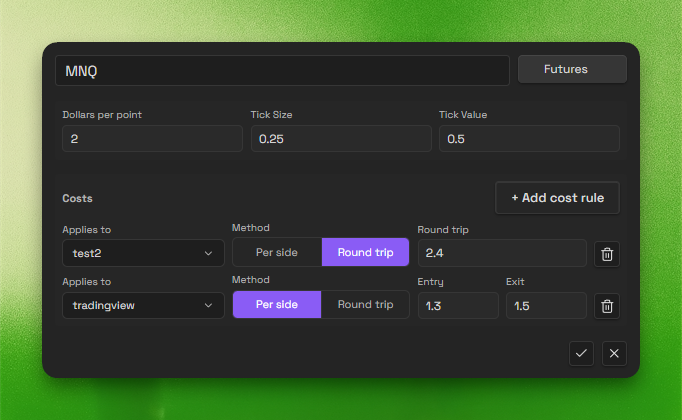
Commission rules apply to future manual trades and imports when the commission field is empty or zero. Use them when a symbol has predictable costs that you do not want to type into every trade.
Symbol mappings
Imported to base symbol mapping
Map alternate imported names back to a canonical symbol so trade data stays consistent.
Broker-format cleanup
Useful when broker exports and your preferred naming scheme do not match.
Custom fields
The custom-field editor is considerably more capable than a simple text-field adder.
Field types
Create text, number, dropdown, multiselect, date, datetime, and time fields.
Validation rules
Set required fields, text length limits, and numeric min or max constraints where appropriate.
Field ordering
Move custom fields up or down to control the order shown in settings and in the trade form Advanced tab.
Trade Log currency display
Format number fields as currency in Trade Log columns when a custom metric represents money.
Dropdown and multiselect options
Manage allowed option values directly in settings instead of relying on free-form note edits.
Frontmatter key preview
See the generated field key and catch reserved-key conflicts before saving the field.
Cross-app usage
Custom fields can flow into Trade Log columns and into filtering across Trade Log, Dashboard, and Review notes where supported.
Review fields are managed separately from trade fields. Use them when you want structured planning context such as bias, focus, intent, or mistakes to avoid in DRCs and higher-timeframe review notes without adding those fields to every trade note.
Named review field groups include move-up and move-down controls. Their saved order controls how the groups appear in Review Context Fields widgets, including widgets that are already open. Ungrouped fields remain at the end.
Session Mode
Session Mode settings cover trading windows, phase layout, Trade Gate workflows, and Session Log tags. See Session Mode for the workflow itself.
Advanced
Advanced keeps structural controls and recovery tools away from day-to-day setup.
Journal folder and image paths
Journal folder location
Choose where Journalit stores journal content. Leave it empty to use the default root folder.
Update image paths
Rewrite image paths in existing trades to match the current folder location. Run this after moving the journal folder by hand.
Backup, restore and reset
Export settings
Download all plugin settings as a JSON file for backup or transfer to another vault.
Import settings
Restore settings from a previously exported file. Imported values are merged with current ones.
Reset to defaults
Return every setting to its default. A backup is created automatically first.
Reset removes more than preferences
Resetting also clears custom options, account settings, and layouts. Export first if there is any chance you will want the configuration back.
Best Practices
Set the foundations first
Configure currency, journal folder, date and time format, and trade defaults before building a large archive.
Keep your taxonomy tight
Do not create overlapping setups, tags, or mistakes unless they support a real analysis distinction.
Treat Trade Sync as an operations surface
Use the status cards, error reports, and account-linking tools instead of assuming sync problems are solved by toggling one switch.
Back up settings before major changes
Export settings before restructuring layouts, custom fields, or sync-related configuration.
Bottom line
Settings defines your defaults, review automation, custom schema, backend sync workflow, and account access in one place.