
One note per trade
Symbol, direction, lots, entry and exit, commission, swap, P&L, the MT4 account, and any stop loss or take profit you set come straight from the report.
Hourly MetaTrader 4 sync turns every MT4 trade into a note you can annotate, tag, and review on your device. MetaTrader 5 trades import from an HTML statement.
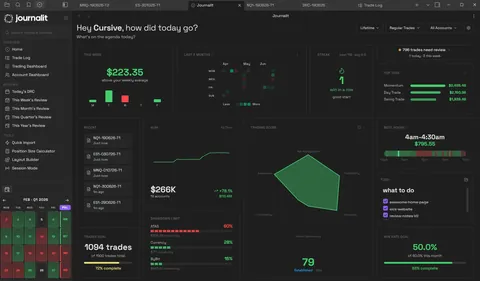
MetaTrader 4 publishes account reports to Journalit on a schedule. Journalit processes them hourly and turns each open or closed trade into a note you can annotate and review.
MT5 is supported through a different path. Current MetaTrader 5 builds no longer publish reports over FTP, so MT5 trades come in by exporting an English HTML statement and uploading it through Trade Import. You get the same trade notes and reviews, but each import is a manual step rather than an hourly sync.
Getting trades out of MetaTrader is only the first step. The point of a journal is what you do with them afterwards.
Symbol, direction, lots, entry and exit, commission, swap, P&L, the MT4 account, and any stop loss or take profit you set come straight from the report.
Add the setup, thesis, tags, mistakes, and chart screenshots to the same note, so the trade and the reason you took it stay together.
Filter the Trade Log and dashboards by symbol, setup, tag, account, or date range to see where your P&L, drawdown, and win rate actually come from.
Reviews pick up synced trades automatically, so an end-of-day or weekend review starts from complete data instead of a copy-paste session.
Link several MT4 accounts, such as a live account and prop-firm challenges, then review each one separately or all together.
Trades are written as plain Markdown notes in Obsidian on your computer, so your journal is not locked inside a web app.
Four steps across Journalit and MetaTrader 4. MT5 statement import is covered below.

The MetaTrader tab in Journalit's Trade Sync settings, where FTP credentials, Sync Now, and linked MT4 accounts live.
The same statement import also works for backfilling older MT4 history.
MT4 sync is built for journalling, not live trade monitoring. Reports are processed hourly, and MetaTrader reports need to be in English.
Need a trade in the journal right now? Log it with Manual Entry. Sync Now processes the latest MT4 report without waiting for the hourly cycle.
MetaTrader 4 has its own tab called Journal. It does a different job from a trading journal.
A terminal activity log. MetaQuotes describes it as information about the actions of the trader and the terminal within the current session, with each entry marked as information, a warning, or an error. It is useful for troubleshooting, and the Account History tab lists closed orders, but neither is built for recording why you took a trade or reviewing it later.
A record of your decisions. Each MT4 trade becomes a note with the execution data plus your setup, screenshots, and lessons, and the analytics and reviews look across weeks and months of trades rather than one terminal session.
Journalit is free for journalling, analytics, reviews, and templates. Pro unlocks Trade Import, automatic trade sync, the Economic Calendar, and prop-firm profiles.
Manual journaling, flexible reviews, and analytics on your device.
Billed annually at $180/year
Skip the spreadsheet cleanup. Sync and import trades into the journal you already review.
Futures and forex trading contains substantial risk and is not for every investor. An investor could potentially lose all or more than the initial investment. Risk capital is money that can be lost without jeopardizing one’s financial security or lifestyle. Only risk capital should be used for trading and only those with sufficient risk capital should consider trading. Past performance is not necessarily indicative of future results.
Hypothetical performance results have many inherent limitations, some of which are described below. No representation is being made that any account will or is likely to achieve profits or losses similar to those shown; in fact, there are frequently sharp differences between hypothetical performance results and the actual results subsequently achieved by any particular trading program. One of the limitations of hypothetical performance results is that they are generally prepared with the benefit of hindsight. In addition, hypothetical trading does not involve financial risk, and no hypothetical trading record can completely account for the impact of financial risk of actual trading. for example, the ability to withstand losses or to adhere to a particular trading program despite trading losses are material points that can also adversely affect actual trading results. There are numerous other factors related to the markets in general or to the implementation of any specific trading program that cannot be fully accounted for in the preparation of hypothetical performance results and all which can adversely affect trading results.