
Adding Trades Manually
Manual trade entry is the fallback when automation does not cover everything, and the primary workflow when you trade on platforms that do not sync through MetaTrader. The goal is not to make manual entry feel like admin work. The form is designed to stay fast, adaptive, and hard to mess up.
When manual entry matters most
Use it for unsupported platforms, partial sync gaps, backfilled historical trades, missed imports, and any trade where you still want full review data even without an automated source.
Opening the Trade Form
There are two practical ways to open the manual trade form.
Use the command palette
Press Ctrl + P, then search for Add New Trade.
Assign your own hotkey
Because the form is available as an Obsidian command, you can map it in Settings → Hotkeys by searching for Add New Trade.
Open the position size calculator
Search for Open position size calculator in the command palette, or assign it a hotkey in Obsidian when position sizing is part of your pre-trade routine.
Both entry points open the same form.
The Three-Tab System

Instead of putting everything into one long form, Journalit splits trade entry into three focused tabs.
The form can also be tailored from the Customise button in the trade form header or from Journal settings. Use the layout editor to choose the input mode, fix the default asset type, and show, hide, or reorder optional blocks without losing hidden values on existing trades.
Execution data
Core inputs such as prices, size, account selection, and timing.
Asset-specific structure
The form changes based on the instrument type so you do not see irrelevant fields.
Main working area
This is where most manual trades are fully entered and checked.
Basic Tab: The Essentials
This is where most trades are entered and where the core math happens.
Asset Type
Choose from stocks, options, futures, forex, crypto, or CFDs. This choice affects what fields appear next, so it should come first.
Account
Select the trading account or accounts the trade belongs to. If no accounts exist yet, the form includes a direct create-account path.
Ticker / Symbol
Enter the traded instrument. Previous symbols are remembered for faster repeat entry.
Direction
Set long or short. For options, direction is inferred automatically from call or put selection.
Entries and Exits
Supports multiple entries and exits, which makes scaling in and scaling out easier to document properly.
Ideal Exits
Optional ideal exit rows let you record the planned or optimal scaled exits beside the actual exits when that helps your review.
Risk management
Add a stop loss and one or more take-profit targets with target prices and either close percentages or position sizes.
Dividend events
Add one or more dividend cashflow entries when realised trade performance includes dividend income or charges.
Blank time fields
New trades show today's date while leaving entry and exit times blank. If you save with a blank time, Journalit uses the current time at submission.
Optional seconds
Enable second-level entry and exit times in Trades settings when several executions occur within the same minute.
Immediate feedback
Journalit calculates P&L as you type, including fees, commissions, and any recorded dividend events, which makes data-entry mistakes easier to catch before you save.
No accounts yet?
The trade form presents account setup as a neutral card and keeps in progress trade state intact while you create the account. Typing an unknown account name offers an Add action that opens the Create Account modal with that name prefilled, so confirmation happens before anything is created.
Take profit targets support two close amount modes, selected under the Take
Profits block in the trade form customisation editor. Close %
records the share of the position closed at each target, while
Size records the position size closed at each target with
asset aware precision.
Details Tab: The Context
The Details tab is where a trade stops being a transaction record and starts becoming a useful journal entry.
Trading Setup
Document the strategy or setup behind the trade. Setups can be created directly from the form.
Mistakes
Tag execution or process errors so they build into a usable mistake database over time.
Thesis
Capture your reasoning in a concise, reviewable form.
Media
Attach chart screenshots, local video, GIFs, confirmations, or other supporting evidence.
Tags
Use custom tags for later filtering, grouping, and analysis.
The setup selector lists active setups. Archived setups stay available in the Setups workspace but do not appear as trade form choices.
Advanced Tab: The Extras
The Advanced tab contains any custom fields you created through settings.
Related page
If you want to add or manage custom fields, see Customisability via Settings.
Smart Field Behaviour
The form adapts to your selections so you are not forced through irrelevant fields.
Asset-specific fields
Options show strike and expiration. Forex shows lot-size and pip-relevant inputs. Other assets expose their own relevant fields.
Auto-complete everywhere
Tickers, accounts, setups, and mistakes remember previous entries so you can move faster.
Ticker commission rules
Instrument settings can fill matching fixed commissions into the form while preserving manual commission entries.
Smart defaults
For example, futures dollar-per-point values can be remembered and reused when you select the same symbol again.
Direction logic
Options can infer long or short from call or put. Other assets keep explicit direction selection.
CFD currency handling
CFD trades can use symbol-specific currency defaults without affecting unrelated asset types.
Per-trade currency
Add the Trade Currency block when a trade's realised values use a different currency from your base currency.
Trade Form Layout And Input Modes
The trade form layout editor keeps the entry workflow focused on the fields you actually use.
Per-Trade Currency And FX Rate
The trade form layout editor includes a Trade Currency block. It is hidden by default and appears directly below Ticker when enabled.
Trade currency
Choose the currency used by the trade's realised monetary values.
Automatic conversion
Journalit uses its daily exchange-rate data when the selected currency differs from the base currency.
Forex quote conversion
Calculated forex trades pin the quote-to-account rate used for P&L when the pair's quote currency differs from the account currency.
Broker-rate override
Enable the FX rate field in Trade Form Customisation when you need to use the exact conversion rate from your broker.
Base-currency analytics
Dashboard, reviews, and account analytics convert supported monetary fields into the configured base currency.
Prices remain in the instrument's quote currency. The conversion applies to realised monetary fields such as P&L, commission, fees, swap, rebates, risk, and dividends. For calculated forex trades, the conversion details beside Profit/Loss show the rate source and date. The broker-rate field stays hidden in the standard layout unless you enable it.
Open Position Snapshot
Add the Open position snapshot block when you want an open trade to show unrealised P&L from a current market price.
Snapshot price
Record the latest market price for the remaining open position.
Captured time
Journalit records the snapshot time automatically and lets you edit it when needed.
Floating P&L
The form combines realised P&L and the snapshot-based unrealised value without changing the saved realised result.
One current mark
Entering another snapshot replaces the previous mark, and closing the trade clears it.
The block is hidden by default in the trade form layout. Existing snapshots stay visible while editing. It sits with the exit fields because the calculation uses the remaining open size. A partial exit clears a snapshot when it changes the captured position, while a complete exit clears the snapshot and saves the trade as closed. Dividends are also available as an optional hidden layout block.

Show, hide, and reorder blocks
Optional Basic, Details, and Advanced blocks can be moved or hidden while core trade fields remain protected.
P&L + Risk mode
Record closed trades by realised P&L, risk, and R multiple when full price reconstruction is not useful.
Fixed asset type
Set a default asset type such as Futures when you do not want to choose the same instrument category every time.
Unsaved-change protection
The layout editor asks before discarding edits, so accidental closes do not silently lose form customisation work.
Ideal Exits, Open Position Snapshot, and Dividends are attached to their fixed execution positions in the form rather than being freely reordered. Ideal Exits are hidden by default, support scaled exit rows with ideal price and size, and are not shown in P&L + Risk mode.
P&L Calculation Modes
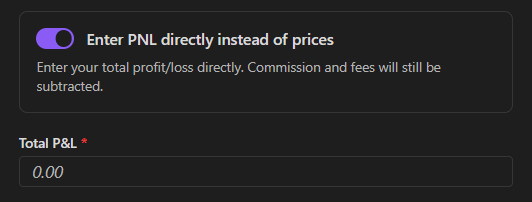
Journalit supports two different ways to record profit and loss.
Calculated Mode
Enter prices, position size, commissions, fees, and dividend cashflows, then let Journalit calculate the result consistently.
Direct Entry Mode
Type the trade's realised P&L before dividends manually when the trade structure is too awkward or external math is easier.
Media Upload Strategy
Good screenshots are easier to collect during the trade than reconstruct after the fact.
Entry screenshots
Capture price action, key levels, and the context for why you took the trade.
Exit screenshots
Record what triggered the exit and what the market looked like when the trade ended.
Trade confirmations
Keep broker confirmations when you want execution proof or auditability.
Video and GIFs
Attach local video or GIF evidence when a still image does not show the full execution or replay context.
Journalit organises uploaded media into folders automatically by date and ticker, and supports dragging in multiple files at once.
Validation and Error Prevention
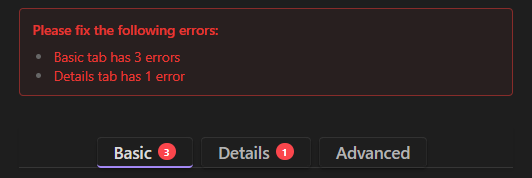
The form does not let you save incomplete trades silently.
Required field markers
Mandatory fields are marked clearly so you know what blocks saving.
Tab-level error counts
Each tab can show red error counts so you know where missing data still exists.
Basic tab first
If something is wrong, start with the Basic tab because that is where the required P&L inputs live.
Time-Saving Shortcuts
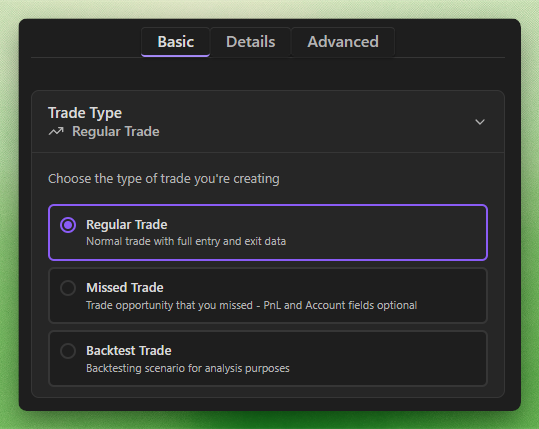
Trade Type Selector
At the top of the Basic tab, you can choose how the trade should be classified.
Regular Trade
Standard trades you actually executed.
Missed Trade
Setups you should have taken but did not. Useful for tracking execution gaps.
Backtest Trade
Historical or simulated trades used for strategy testing and validation.
The selected trade type affects file naming and organisation in your vault.
Other Speed Boosters
Account memory
The form remembers recently used accounts and asset types so repeat entry starts closer to the correct state.
Reusable custom options
Setups, mistakes, or tickers created in the form become available for future trades automatically.
Bulk-compatible fields
One trade can be assigned to multiple accounts or tagged across several setups when needed.
Common Workflow Tips
Start with the core sequence
Use this order: Asset Type → Account → Ticker → Direction. Most of the form behaves more predictably once those decisions are made.
Respect instrument precision
Crypto and forex often need more decimal precision than stocks or many futures. The form adapts, but you should still pay attention to what you type.
Keep thesis notes structured
If you use multi-timeframe analysis, the thesis field works well for short
structured notes such as: Daily uptrend, 4H pullback, 15M entry signal.
Tag mistakes honestly
If you broke your process, log it. The point of mistake tagging is not image management. It is pattern detection.
After You Submit
Once the trade is saved, Journalit handles the background updates.
Account balances update
Associated account data is refreshed automatically.
Tags and metadata update
Relevant trade data becomes available for filtering and later analysis.
Trade note generation
The note file is created with the expected naming and linkage.
Reporting integration
The trade immediately contributes to dashboards, logs, and performance metrics.
Bottom line
The goal is not perfect manual entry on every single trade. The goal is a consistent logging habit that gives you trustworthy review data and useful performance insight over time.