
Navigation Sidebar
The navigation sidebar gives you a persistent control panel for moving through Journalit without bouncing between ribbon icons, folders, and repeated command-palette searches. It combines pinned navigation with fast search across trade notes and review notes.
What it is best at
Use the sidebar when you want one place to open core views, jump between review periods, and find specific trades faster than manual folder browsing.
Sidebar Overview

Persistent navigation
Keep core Journalit destinations visible in the left sidebar instead of reopening them from scratch every time.
Review-first workflow
Jump straight to today's DRC or the current weekly, monthly, quarterly, and yearly reviews.
Built-in search
Search trade notes and review notes from the same panel instead of switching to another view first.
Open The Sidebar
Open it from Settings
Open Settings → General → Home View Settings and choose Open Sidebar. Journalit reveals an existing sidebar leaf or creates one in Obsidian's left sidebar.
Reopen it from the command palette
Press Ctrl+P and run Open navigation sidebar if you closed it or want to bring it back into view.
Use Home shortcuts
The Home Getting Started checklist includes an Open Sidebar action. You can also restore the hidden-by-default Navigation Sidebar Quick Link when you want the action in your normal shortcut row.
Choose how it opens results
Set the sidebar to open targets in a new tab or replace the active tab in Settings.
The Performance Calendar sidebar uses the same tab behaviour when you open a day, week, month, quarter, or year review. Replace mode targets the active main-area tab and leaves the sidebar itself in place.
What The Sidebar Contains
The sidebar is split into three sections.
Overview
Home Overview, Dashboard, Trade Log, and Accounts.
Reviews
Today's DRC plus the current weekly, monthly, quarterly, and yearly review notes.
Tools
Add Trade, Layout Builder, Trade Import, Quick Import, and Position Size Calculator.
These items are meant to cover the destinations many traders open repeatedly during the day and during review.
Search Trades And Reviews
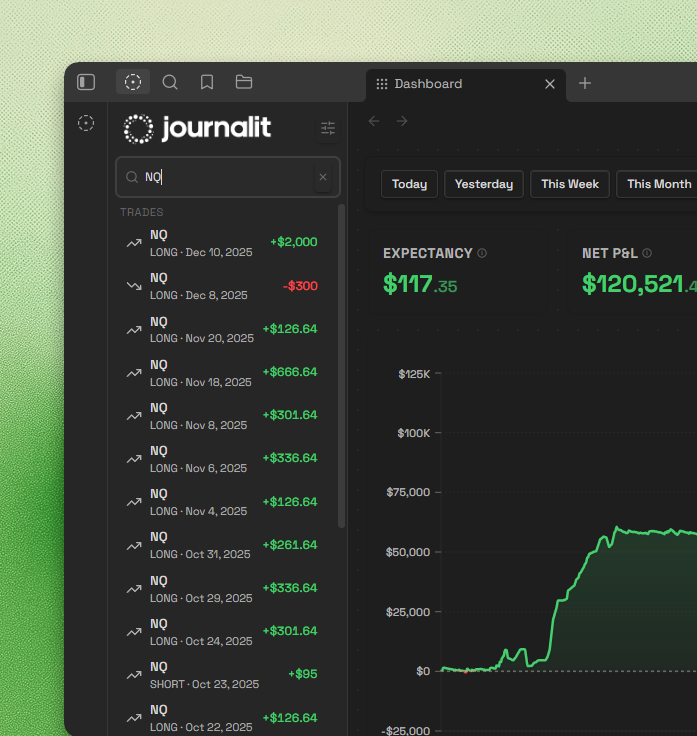
The search box is where the sidebar becomes more than a shortcut list.
Trade-note search
Search by ticker, direction, status, account, setup, mistake, tags, and related trade-note text tokens.
Review-note search
Search DRC, weekly, monthly, quarterly, and yearly review notes from the same input.
Grouped results
Results appear under Trades and Reviews so you can tell immediately what kind of note you are about to open.
Keyboard support
Use arrow keys to move through results, Enter to open the selected result, and Escape to clear the current search.
Practical Search Use Cases
Find a ticker fast
Search for instruments such as ES, NQ, EURUSD, or BTC to jump straight to matching trades.
Review a setup
Search for a setup name to pull up the trades tied to that pattern.
Audit recurring mistakes
Search mistake labels to surface the trades where the same problem appeared.
Jump by account
Search a trading account name when you want trades from one account without reconfiguring a larger view first.
Customise The Sidebar
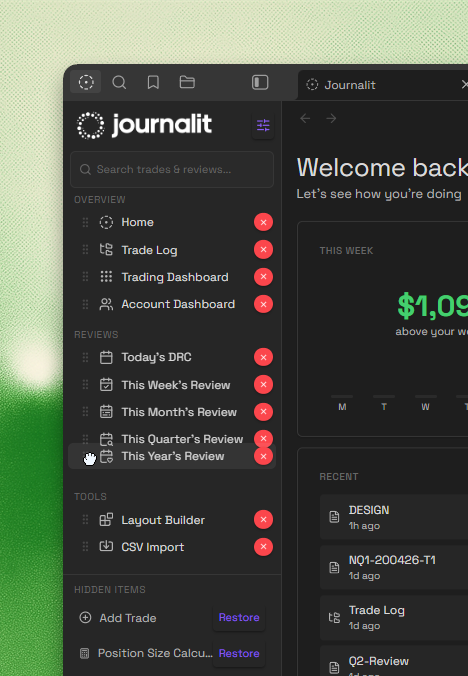
The sidebar is customisable per user, so it does not have to stay in the default order forever.
Turn on customise mode
Use the customise control at the top of the sidebar to switch into edit mode.
Reorder items
Drag items into the order that matches how you actually work. Reordering stays within each section, so Overview, Reviews, and Tools remain structured.
Hide what you do not use
Remove low-value items from the visible list if they are adding noise.
Restore hidden items later
Hidden items stay available in a Hidden Items area, so you can bring them back without resetting the whole sidebar.
Tab Behaviour
The sidebar can open destinations in two ways.
Open in new tab
Useful if you want to keep the current view visible while exploring trades or reviews from the sidebar.
Replace active tab
Useful if you treat the sidebar as the main way to swap what is shown in your working tab.
This setting applies both to sidebar navigation items and to search results.
Close the sidebar with Obsidian's normal panel controls. Reopen it with Open Sidebar in Settings, a Home shortcut, or the command palette.
Related page
Configure tab behaviour in Settings.
What Search Covers And What It Does Not
When To Use It Instead Of Other Views
Use the sidebar for speed
Best for opening something quickly when you already know roughly what you want.
Use Trade Log for deeper analysis
Best when you need filters, sorting, columns, and batch actions across a larger trade set.
Use Home for a full workspace
Best when you want widgets, goals, and a broader working dashboard rather than a compact navigation panel.
Bottom line
The navigation sidebar is the fastest way to move through Journalit's core views and note history. If you often think, "I know the trade or review I want, I just want to open it quickly," this is the feature built for that.