
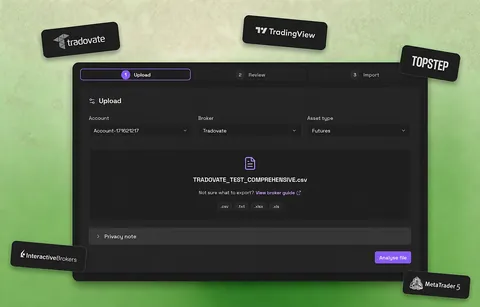
Supported broker exports
Choose the broker or platform first. Each guide names the exact report, file format, and import path so you do not have to guess which export Journalit expects.
| Broker or platform | Export to use | Format | Import path | Guide |
|---|---|---|---|---|
| Interactive Brokers | Flex Query Orders export | CSV | CSV Import | Export guide |
| Tradovate | Reports → Orders export | CSV | CSV Import | Export guide |
| TopstepX | Orders or Trades tab export | CSV | CSV Import | Export guide |
| Breakout Terminal | Terminal account export → trades.csv | CSV | Trade Import | Export guide |
| TradeZero | Trade history export | CSV | CSV Import | Export guide |
| TradingView | Paper Trading Order History export | CSV | CSV Import | Export guide |
| FX Replay | Analytics export | CSV | CSV Import | Export guide |
| Bybit | Trade History export | CSV | CSV Import | Export guide |
| Hyperliquid | Trade History export | CSV | CSV Import | Export guide |
| Blofin | Order Centre futures trade history export | CSV | CSV Import | Export guide |
| Sierra Chart | Trade Activity Log → Save Log As | Text/CSV-style export | CSV Import | Export guide |
| MotiveWave | Account → Executions export | CSV | CSV Import | Export guide |
| ATAS | Trading Journal workbook export | XLSX | CSV Import | Export guide |
| Trading Technologies | Fills widget download | CSV | CSV Import | Export guide |
| Rithmic | R | Trader Pro Order History | CSV | CSV Import | Export guide |
| DeepCharts | Strategy Report → Trade List export | CSV | CSV Import | Export guide |
| MetaTrader 4/5 | Account History → Save as Report | HTML | Broker adapter | Export guide |

CSV Import · CSV
Interactive Brokers
Flex Query Orders export
Built-in broker adapter · Verified June 2026

CSV Import · CSV
Tradovate
Reports → Orders export
Built-in broker adapter · Verified June 2026

CSV Import · CSV
TopstepX
Orders or Trades tab export
Built-in broker adapter with manual mapping fallback · Verified June 2026

Trade Import · CSV
Breakout Terminal
Terminal account export → trades.csv
Built-in broker adapter · Verified September 2026

CSV Import · CSV
TradeZero
Trade history export
Built-in broker adapter · Verified June 2026

CSV Import · CSV
TradingView
Paper Trading Order History export
Built-in broker adapter · Verified June 2026

CSV Import · CSV
FX Replay
Analytics export
Built-in broker adapter · Verified June 2026

CSV Import · CSV
Bybit
Trade History export
Built-in broker adapter · Verified June 2026

CSV Import · CSV
Hyperliquid
Trade History export
Built-in broker adapter · Verified June 2026

CSV Import · CSV
Blofin
Order Centre futures trade history export
Built-in broker adapter · Verified June 2026

CSV Import · Text/CSV-style export
Sierra Chart
Trade Activity Log → Save Log As
Built-in broker adapter · Verified June 2026

CSV Import · CSV
MotiveWave
Account → Executions export
Built-in broker adapter · Verified June 2026

CSV Import · XLSX
ATAS
Trading Journal workbook export
Built-in broker adapter · Verified June 2026

CSV Import · CSV
Trading Technologies
Fills widget download
Built-in broker adapter · Verified June 2026

CSV Import · CSV
Rithmic
R | Trader Pro Order History
Built-in broker adapter · Verified June 2026

CSV Import · CSV
DeepCharts
Strategy Report → Trade List export
Built-in broker adapter · Verified August 2026

Broker adapter · HTML
MetaTrader 4/5
Account History → Save as Report
Built-in broker adapter, English reports only · Verified June 2026
Not listed?
Tell us which broker to add and we will use requests to prioritise new guides and adapters.
Request a broker in DiscordHow trade import works
Export the source, validate the mapping, then make the trades normal journal records.
- 1
Export your trade history
Start with a broker CSV, spreadsheet-style journal, or supported report, not screenshots or pasted tables. - 2
Map the data correctly
Use a broker guide, built-in adapter, or manual mapping in CSV Import. The preview checks dates, symbols, direction, prices, quantity, fees, and P&L before anything is written to your vault. - 3
Review the imported trades
Confirm the eligible trades after validation. Repeated imports are matched against existing records so duplicates are not offered as normal new writes.
What if your broker is not listed?
Manual mapping covers CSV, Excel, and table-style exports with clear trade-history fields.
Start small
Import a week or month before moving the full history.
Map real fields
Use symbol, side, dates, prices, quantity, fees, and P&L, not summary rows.
Compare totals
Check trade count, symbols, fees, and P&L against the source export before trusting the history.
Import paths Journalit supports
Most traders start with a broker CSV. These are the other paths when your history lives somewhere else.
Broker CSV exports
Use a broker guide, supported adapter, or manual mapping for trade-history files.
Explore this pathSpreadsheet trade logs
Bring an older Excel-style journal into a structured trade log without retyping it.
Explore this pathMetaTrader 4 sync
Use automated Trade Sync for MT4. MT5 uses the HTML statement import workflow.
Explore this pathValidate the import before trusting the history
The preview separates valid trades, incomplete rows, and duplicates before the import is confirmed. Treat the first file as a verification step, not a blind bulk migration.
Start with a small date range
Import a week or month so errors are easy to spot.
Compare totals against the source
Check trade count, symbols, dates, side, quantity, fees, and P&L.
Read the preview status
Completed, partially completed, and failed previews tell you whether trades are writable or the source needs correction.
Check duplicate matches
A completed preview may contain only matched or blocked trades. Review those classifications instead of importing the same history twice.
Generic trading journal CSV template
If your broker is not listed, start with a simple shape and map the columns manually.
symbol,side,entry_time,exit_time,entry_price,exit_price,quantity,fees,pnl,setup,notes
ES,long,2026-04-29 09:35,2026-04-29 10:12,5241.25,5248.75,1,4.50,375,ORB,"Good execution"
Use explicit field names. Remove balances, repeated headers, and summary rows before a bulk import.
What trade import looks like
Manual mapping makes broker and spreadsheet data legible before it reaches your trading journal.
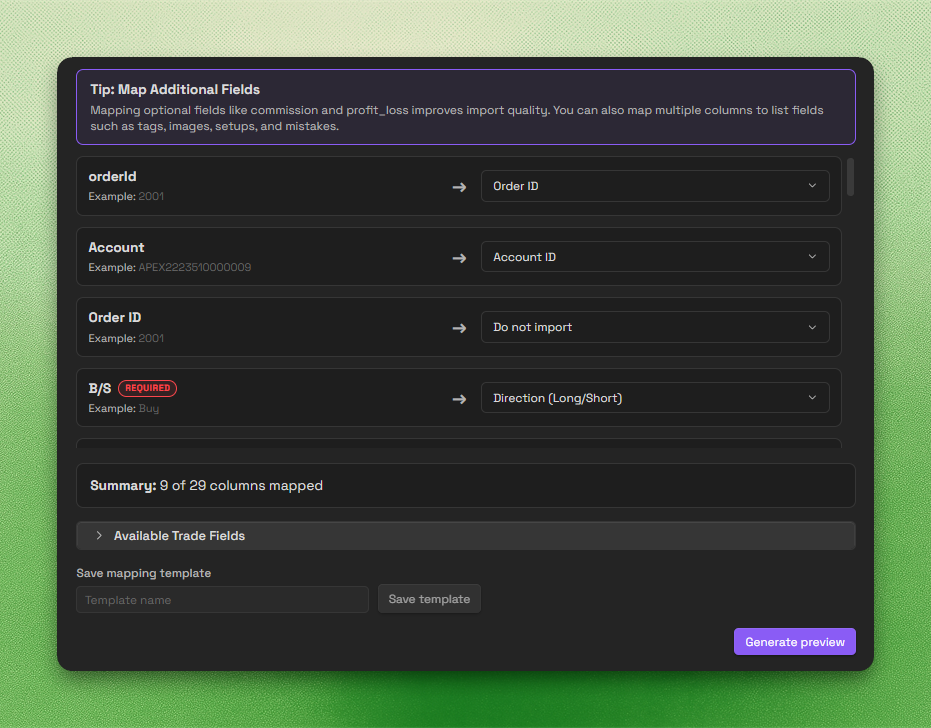
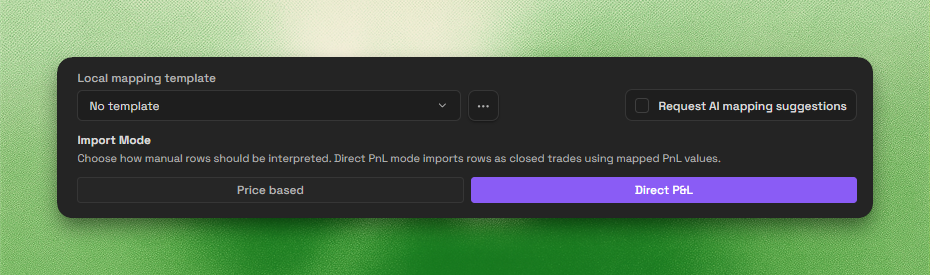
AI-assisted mapping uses headers and a small row sample. Messy or non-standard files still need manual verification.
Common concerns before importing
Free vs Pro
Journalit is free for journalling, analytics, reviews, and templates. Pro unlocks Trade Import, automatic trade sync, the Economic Calendar, and prop-firm profiles.
Free
Manual journaling, flexible reviews, and analytics on your device.
INCLUDES
- Unlimited trades & accounts
- Journal stored on your device
- Custom fields & properties
- Rich markdown notes
- Analytics dashboard
Pro
Billed annually at $180/year
Skip the spreadsheet cleanup. Sync and import trades into the journal you already review.
EVERYTHING IN FREE, PLUS
- Automatic Trade Sync for supported brokers
- Trade Import for broker exports and statements
- Economic Calendar with weekly event imports
- Prop-firm profiles that prefill challenge rules
- Multi-account sync support
- Priority support