
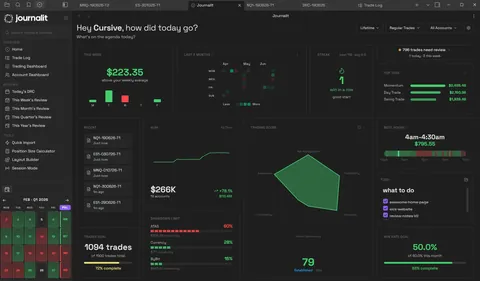
Notion vs Obsidian for trading journals
Compare the workspace, the files, and the review workflow before you choose.
| Need | Notion | Obsidian with Journalit |
|---|---|---|
| Structured trade log | Good with databases, but you build and maintain it yourself. | Built for trades with dashboards, notes, reviews, and import workflows. |
| Detailed trade notes | Good for writing, but notes can become disconnected from the trading record. | Trade notes, screenshots, review prompts, and analytics stay together. |
| Data ownership | Your workspace lives inside a hosted SaaS product. | Your trading records stay on your device as files you control. |
| Offline use | Limited by Notion's hosted model and sync behaviour. | Obsidian is built around local files, so the journal remains readable on your device. |
| Broker imports | Usually requires custom tables, manual entry, or external automation. | Journalit supports broker exports, CSV mapping, validation, and MetaTrader 4 sync workflows. |
Where Notion still works
Notion is a flexible hosted workspace for tables, writing, and collaboration.
Notion
Flexible databases
Build tables, properties, relations, and dashboards yourself.
General workspace
Keep trade plans, checklists, study notes, and other work together.
Easy sharing
Share hosted pages when collaboration matters more than local files.
Where Obsidian with Journalit is stronger
Obsidian with Journalit is a local trading journal built around notes, review, and ownership.
Obsidian + Journalit
Local files
Trade records stay as markdown in your Obsidian vault.
Review workflow
Trade notes, dashboards, review templates, and analytics are ready to use.
Imports when needed
Use CSV mapping or MetaTrader sync instead of maintaining every row by hand.
Move from a Notion trading journal
Export the table, map the fields, and validate a small sample before moving the full history.
- 1
Export the trade table
Export the relevant Notion database to CSV. Keep the original file unchanged as a reference copy. - 2
Clean the columns
Make symbol, side, times, prices, quantity, fees, and P&L explicit. Decide how to handle notes stored in separate pages. - 3
Import and validate a sample
Map a small sample first. Check totals, dates, direction, fees, and P&L before importing the full history.